
Expense allows you to automate the import of data such as users, projects, and internal accounts through an API integration. By using a JSON-based REST API, data can be updated in real time and made immediately available in Expense.
To automate master data maintenance in Expense, such as employee records, project registers, and other internal dimensions, several integration options are available. This article describes the JSON API integration option.
An alternative approach is to import data using XML files processed through scheduled imports. The two methods differ in terms of implementation for both your organization and Expense.
👉 If this is of interest, please contact Expense Support for more information.
Looking to set up a Custom Import instead? Read more here.
Expense API Integration
This option allows you to publish data, such as projects or other internal accounts, through a JSON-based REST API.
This enables Expense to access your data in real time.
Example
When a project is created in your source system:
- ✅ The project becomes immediately available in Expense
- ✅ Users can search and select it during accounting and coding
- ✅ No scheduled synchronization is required
Expense Support enables the external API functionality through an internal system setting.
API Requirements
To connect Expense to an external API, you must provide an API that returns JSON.
The API response should contain a list of dimensions with at least the following information:
- Code
- Description
If users need to search among projects or dimensions, the API must also support receiving a search string in the URL and filter the results accordingly.
Expense Configuration
Navigate to:
Administrate > Internal Accounts > Selected Dimension
When External API is selected as the input type, additional settings become available.
The sections below explain each configuration field.
API URL
Specify the URL of your API endpoint.
You can use the variable:
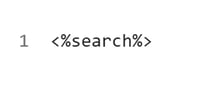
When a user searches for a dimension in Expense, the placeholder is automatically replaced with the entered search term.
Your API should then return filtered results based on the search value.
Example

👉 The exact placement of the variable depends on how your API has been designed.
Envelope
If your API returns its results within an envelope object, enter the name of that object here.
Example
If the response structure is:
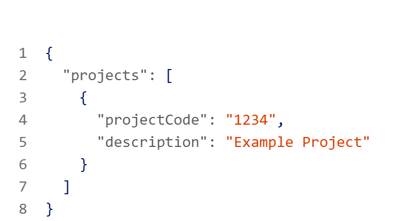
the envelope value would be:
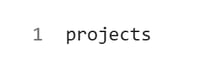
If no envelope is used, leave this field blank.
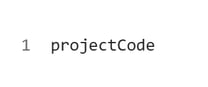
Code Parameter
Specify the field name used for the dimension code.
Example
If your JSON response contains:
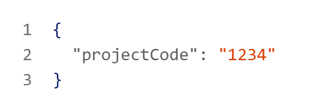
Enter:
Description Parameter
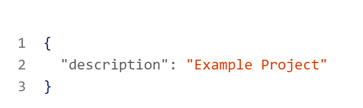
Specify the field name used for the dimension description.
Example
If your JSON response contains:
enter:

Examples
Example Response Without Envelope
Header

If no charset is specified, the default is ISO-8859-1.
Body
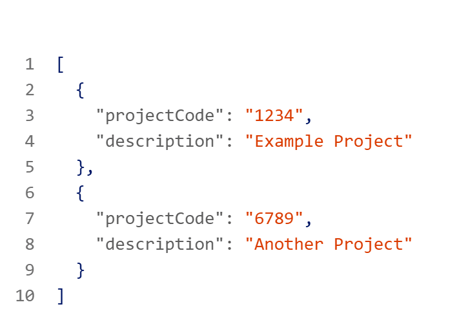
✅ No Envelope value is required.
Example Response With Envelope
Header

If no charset is specified, the default is ISO-8859-1.
Body
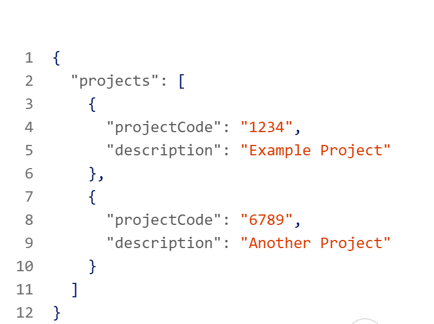
Configuration:
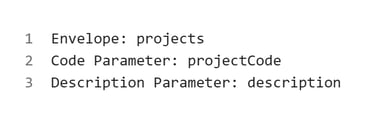
✅ Expense will read the data from within the envelope object.
Security
At present, Expense does not support session-based authentication methods.
Instead, we recommend the following security measures:
Use HTTPS
- ✅ Encrypt all traffic between Expense and your API
- ✅ Protect sensitive business data during transmission
Restrict Access by IP Address
Configure your API to only accept requests from Expense's approved IP addresses.
✅ Reduces exposure to unauthorized access attempts.
Use URL Tokens
For additional security, include a token in the API URL.
Example:

✅ Adds another layer of protection for your endpoint.
Benefits of API-Based Imports
⚡ Real-Time Availability
Projects and dimensions become available in Expense immediately after being created in the source system.
🔄 Automated Synchronization
No manual imports or scheduled files are required.
📊 Reduced Administration
Keep employee records, projects, and dimensions up to date automatically.
✅ Improved Data Accuracy
Users always access the latest available information.
💡 Best Practice Tips
Design for Search Performance
Ensure your API returns filtered results when the search parameter is used.
Use UTF-8 Encoding
Always return:
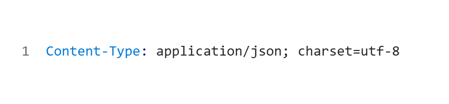
to avoid character encoding issues.
Test Before Production
Validate:
- JSON formatting
- Search functionality
- Security settings
- Field mappings
before going live.
Document Your API
Maintain clear documentation of:
- Endpoint URLs
- Parameters
- Field names
- Security requirements
👉 This simplifies future maintenance and troubleshooting.
Frequently Asked Questions (FAQ)
What data can be imported through the API?
Typical examples include:
- Employee data
- Projects
- Cost centers
- Internal accounts
- Other dimensions
Does Expense support real-time updates?
Yes. The API integration allows Expense to access data directly from the source system.
Is JSON required?
Yes. The API must return data in JSON format.
Does Expense support session-based authentication?
No. HTTPS, IP restrictions, and URL tokens are the recommended security methods.
Can users search for projects and dimensions?
Yes. Your API must support a search parameter and return filtered results.
Summary
- ✅ Import employee and dimension data directly into Expense using a JSON REST API
- ⚡ Make projects and internal accounts available in real time
- 🔍 Support project searches using the
<%search%>parameter - 📊 Configure field mappings for code and description fields
- 🔒 Secure the integration with HTTPS, IP restrictions, and tokens
- 🚀 Reduce administration and improve data quality through automated API integrations